Salesforce
Overview
Salesforce is a cloud-based CRM software designed for service, marketing, and sales.
The Salesforce destination supports batch and real-time syncs.
Destination tab
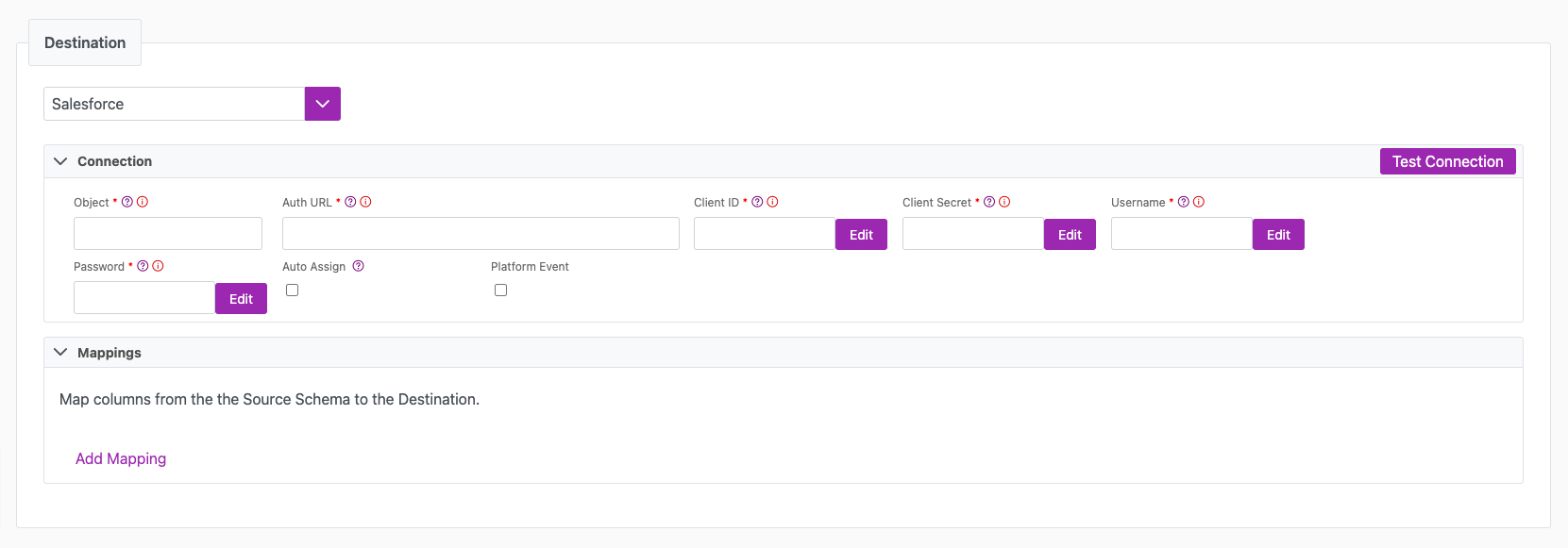
The following table outlines the mandatory and optional parameters you will find on the Destination tab (Image 1).
- Destination details
- Column Mapping
- Filter
The following parameters will help to define your data sync destination and how it functions.
| Parameter | Description | Example |
|---|---|---|
| Destination | Mandatory. Select your destination from the drop-down menu. | Salesforce |
| Object | Mandatory. The API name of the platform event (with the __e). | Notification__e |
| Auth URL | Mandatory. The URL that issues your Salesforce token. With the Client Credentials grant this must be your org's My Domain host. With the Username-Password grant you can also use https://login.salesforce.com/services/oauth2/token or, for sandboxes, https://test.salesforce.com/services/oauth2/token. | https://mydomain.my.salesforce.com/services/oauth2/token |
| Client ID | Mandatory. The encrypted Client ID (consumer key) of your Salesforce External Client App or Connected App. The Connection UI will automatically encrypt this value for you. | |
| Client Secret | Mandatory. The encrypted Client Secret (consumer secret) of the same app. The Connection UI will automatically encrypt this value for you. | |
| Grant Type | Mandatory. The OAuth 2.0 flow used to obtain the token. Username-Password (default) signs in as a Salesforce user. Client Credentials authenticates the app itself through an External Client App with the client credentials flow enabled and a Run As user. Salesforce no longer allows new Connected Apps and is retiring the Username-Password flow, so use Client Credentials for new integrations. | Client Credentials |
| Username | Mandatory for Username-Password. The Username of a Salesforce account with the permissions to connect to your Object. The Connection UI will automatically encrypt this value for you. Not shown for Client Credentials. | |
| Password | Mandatory for Username-Password. The Password of the above Salesforce account, with the security token appended if your org requires it. The Connection UI will automatically encrypt this value for you. Not shown for Client Credentials. | |
| Auto Assign | Optional. You can set this to true to leverage auto assignment in Salesforce. | |
| Platform Event | Optional. You can set this to true to enable Platform Events. | |
| Test Connection | You can use the "Test Connection" button to ensure that your credentials are properly configured to access your destination. If configured correctly, a "Connection Successful" pop-up will appear. If configured incorrectly, a "Connection Failed" pop-up will appear along with a link to the applicable error logs to help you troubleshoot. |
Salesforce serves the Client Credentials flow only from your org's My Domain host, for example https://mydomain.my.salesforce.com/services/oauth2/token. It rejects requests sent to login.salesforce.com or test.salesforce.com with invalid_grant: request not supported on this domain. Sandboxes have their own My Domain host. The External Client App must have the client credentials flow enabled with a Run As user, and every record the sync creates or changes is attributed to that user.
The Column Mapping section is where you define which source columns you want to sync to which destination columns. You can repeat the values for multiple columns.
| Parameter | Description | Example |
|---|---|---|
| Source Column | Mandatory. The name of your column as it appears in the source. | Name |
| Target Column | Mandatory. The name of your column as it appears in the destination. | Name |
You have the option to add a destination filter to your data sync. Please review the documentation here for more information on destination filters.You can use the "Test Connection" button to ensure that your credentials are properly configured to access your destination.
If configured correctly, a "Connection Successful" pop-up will appear.
If configured incorrectly, a "Connection Failed" pop-up will appear along with a link to the applicable error logs to help you troubleshoot.
Next steps
- Define yourSync Actions.
- Add in your Post Sync Scripts, if required.
- Define your Permissions.
- If you are running a real-time sync, set up your Listener Config and enable it to begin your sync.
- If you are running a batch sync, click Jobs > Start a Job to begin your sync.
Troubleshooting
Source null values aren't updating correctly in Salesforce
When performing a data sync with a Salesforce destination, you need to replace any nulls in the source with '#N/A'.
You can use ISNULL([Column],'#N/A') in the source query.
For more information, review the Salesforce documentation here